Linking apps in Sidekick
The Apps screen in standalone Sidekick is where you link the systems that should receive your call transcripts. Once an app is linked, Sidekick files each transcript against the matching contact after a call has been transcribed, so people can read it in the system they already work in.
Sidekick and Connect
Linking an app is the same link in both products, so an app you link in one shows as linked in the other. What the app does for you is different.
- In Connect, a linked app searches your contacts, shows caller ID and screen pops on incoming calls, and logs each call back to the app when it ends. Connect has the phone, so these need a Connect licence.
- In standalone Sidekick, a linked app only receives your call transcripts and summaries, after a call has been transcribed. Sidekick doesn't place or answer calls, so there is no caller ID, contact search, screen popping or call logging.
- With both, you link an app once and get both sets of features.
If you only use Sidekick, this page is all you need. The app pages linked below describe the Connect side as well.
Which apps appear
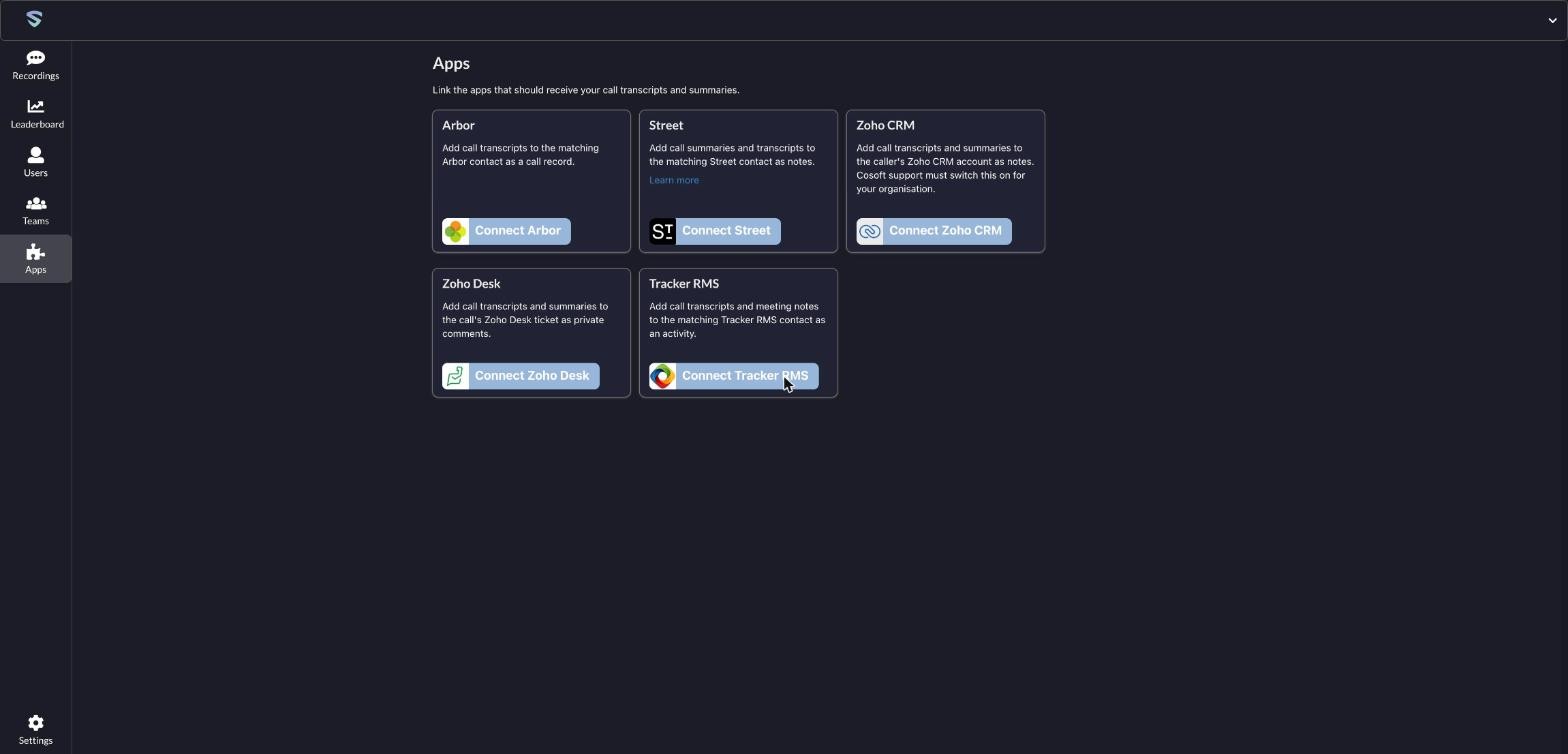
Sidekick shows the apps that receive transcripts:
- Arbor - adds a call record carrying the transcript to the contact.
- Street - adds a note to the contact with the call summary, meeting notes, sentiment and transcript.
- Tracker RMS - adds an activity to the contact with the transcript and the meeting notes.
- Zoho CRM - adds the transcript and summary as notes on the caller's account, once Cosoft support has switched on Zoho CRM uploads for your organisation. The Zoho CRM page explains how.
- Zoho Desk - adds the transcript and summary to the call's ticket as private comments.
The other apps in Connect don't receive transcripts, so they aren't shown here.
You may not see every card. Only admins see Street and Arbor. The two Zoho cards appear when Zoho is switched on for your organisation, and Tracker RMS appears once it has been set up for you. If a card you expect is missing, ask Cosoft.
Linking an app
1. Sign in to Sidekick and click Apps in the left-hand menu.
2. Find the app and click its button, for example Connect Zoho CRM.
3. Sign in to the app if it asks you to, and accept the permissions it lists. Each app's page says what it asks for.
4. You'll come back to Sidekick, on the Recordings screen, and a message confirms the link. Click Apps again and the card now shows a green tick and a Disconnect button.
Street is the exception. Instead of signing in, you paste an access token into a window. See Connecting Street to Connect.
Who links what
- Street is set up once for the whole organisation, by an admin.
- Arbor is also set up once for the organisation, by an admin who has an Arbor administrator's sign-in.
- Zoho CRM, Zoho Desk and Tracker RMS are linked by each person with their own account, and that person's own permissions in the app apply.
Unlinking an app
Click Disconnect on the app's card. Disconnecting Zoho CRM leaves Zoho Desk linked, and the other way round.
Street asks you to click twice, Disconnect and then Confirm disconnect. Disconnecting it removes Street for everyone in your organisation, and you'd need a new access token from Street to link it again. Disconnecting Arbor also removes it for everyone.
What gets filed
- Transcripts reach an app after a call has been transcribed in Sidekick.
- Each app finds the contact from the caller's phone number. See the app's page for what happens when nothing matches.
Troubleshooting
A "Forbidden" page appears after you approve access. Zoho, Tracker RMS and Arbor give you about ten minutes between clicking the button and approving. If you take longer, the link fails with this page. Go back to the Apps screen, click the button again, and approve straight away.