Street
Linking Connect to Street lets you:
- Look up Street contacts by phone number from Connect.
- See who's calling when the number matches a Street contact, on screen and in call notifications.
- Open the matching Street contact record when a call comes in, known as screen popping.
- Log a note on the Street contact automatically when a call ends.
- Add Sidekick call summaries, sentiment and transcripts to the contact.
- Add WhatsApp conversations to the contact.
Using standalone Sidekick? The contact search, caller ID and call logging described here need Connect. In Sidekick, Street only receives your call summaries and transcripts, and you connect it from Sidekick's Apps screen. See Linking apps in Sidekick.
Before you set this up
Street is connected once for your whole organisation, not by each user individually. A Connect administrator does it from the Apps screen, and everyone in your organisation gets it.
You'll need two things:
- A Connect administrator account, so you can see Street on the Apps screen.
- A Street user with access to Settings then Applications, so you can generate the access token. That's usually an account administrator in Street.
They don't have to be the same person, but whoever generates the token in Street needs to get it to whoever enters it in Connect.
Where calls appear in Street
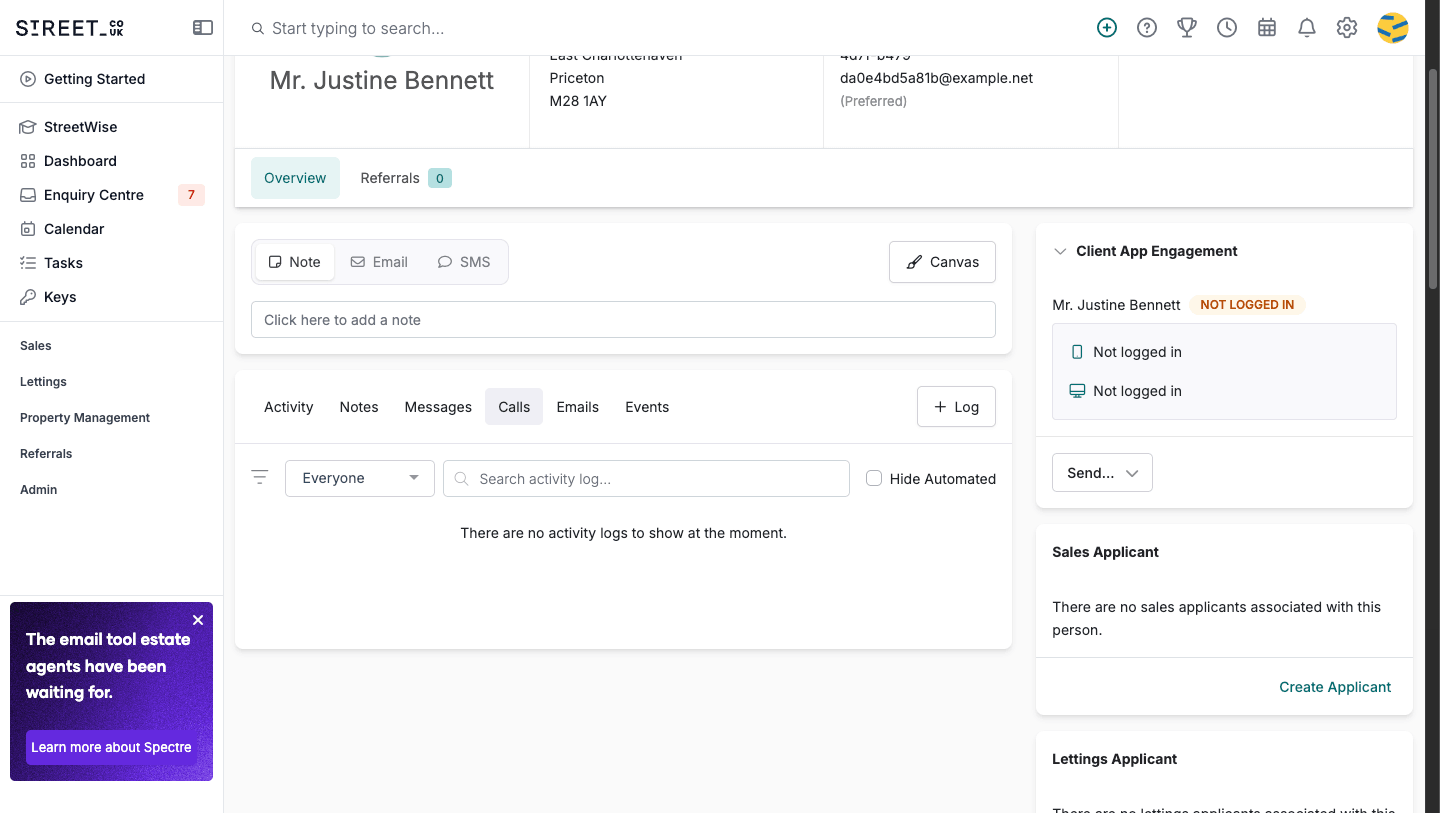
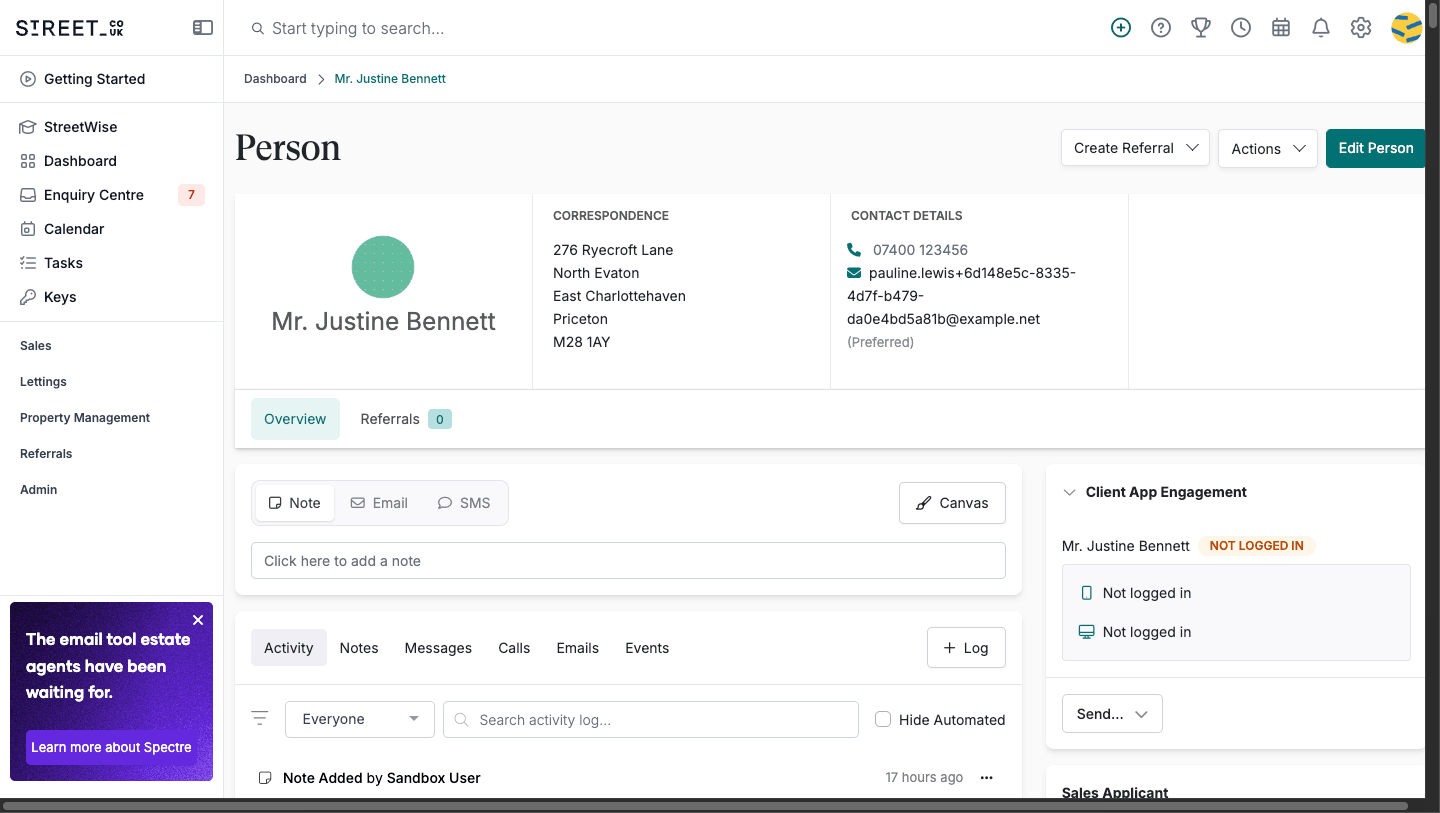
Connect adds calls, transcriptions and WhatsApp conversations to the contact as notes. They show on the person record under Activity and under Notes.
They do not appear under the person's Calls tab, or under Messages. Street's API gives no way for an outside system to write to either, so Connect never puts anything there, even though it is logging every call. If you're looking for something Connect has logged, look under Activity or Notes.
Generating your Street access token
1. Log in to Street and open Settings. Under Account Administration, click Applications.
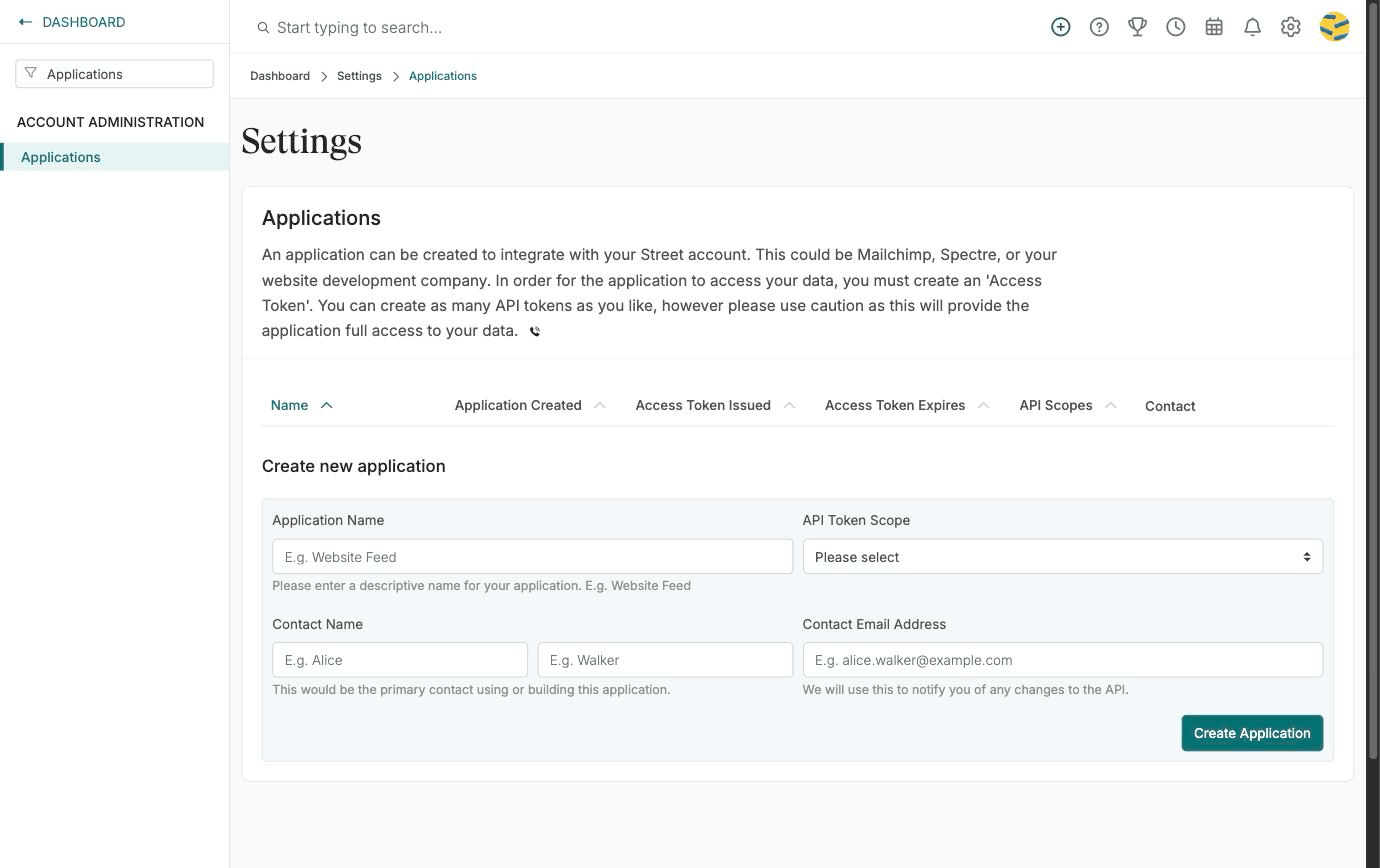
2. Under Create new application, give the application a name you'll recognise, such as Connect. Set API Token Scope to Open API. That is the only scope Connect uses, and it won't work with any of the others.
3. Enter a contact name and email address. Street uses these to tell you about changes to their API. Click Create Application.
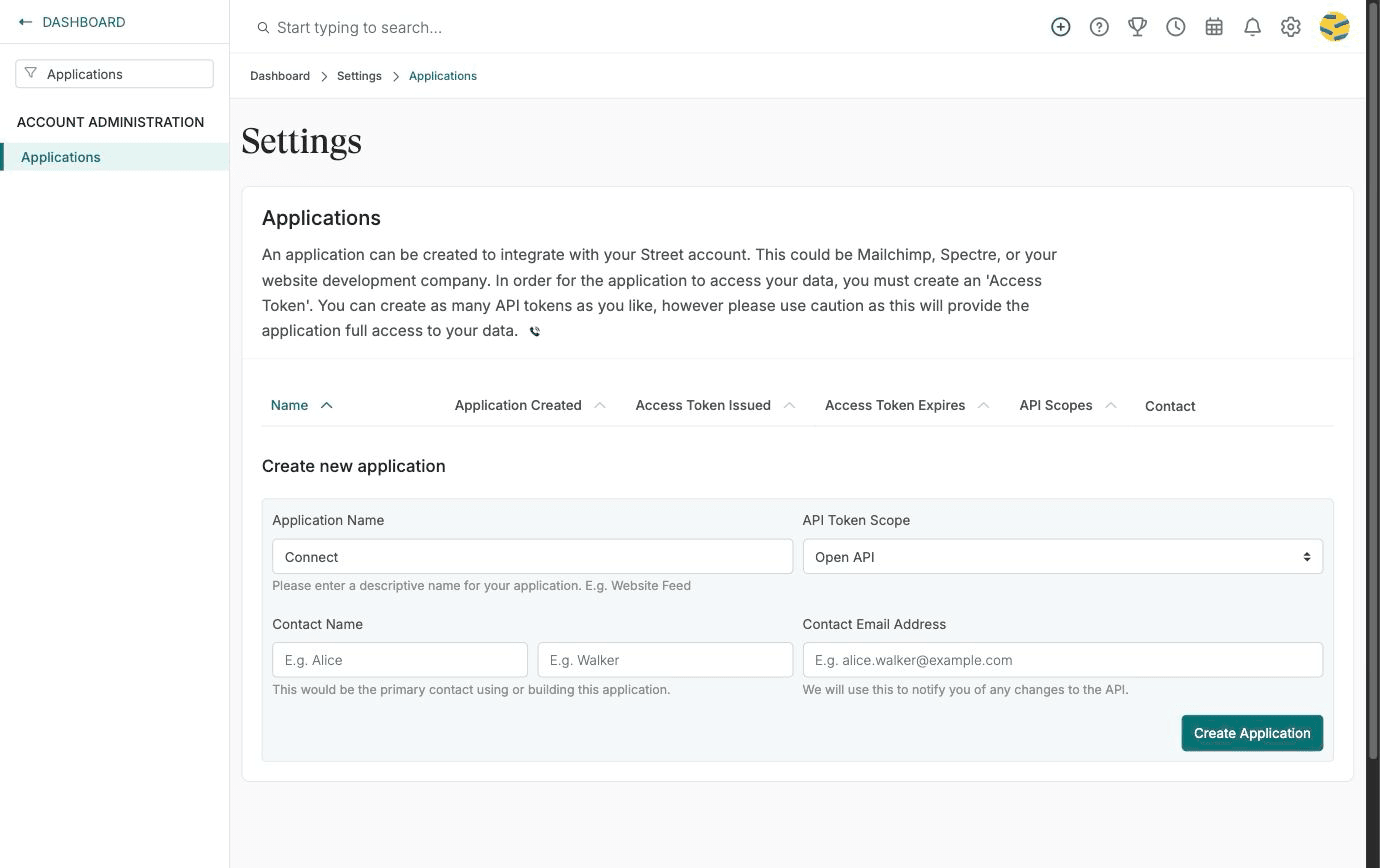
4. Street shows you the access token once, and only once. Copy it straight away, because you'll paste it into Connect in the next section. If you lose it, use the refresh icon next to the application in the list to issue a new one.
The token appears in the applications list with its scope and an expiry date. Street issues these with a long life, so renewing it isn't something you'll need to think about day to day, but the expiry date is there if you want to check it.
Treat the token like a password. It gives full access to your Street data, so don't post it in a shared channel or email it around.
Connecting Street to Connect
A Connect administrator does this once for the organisation.
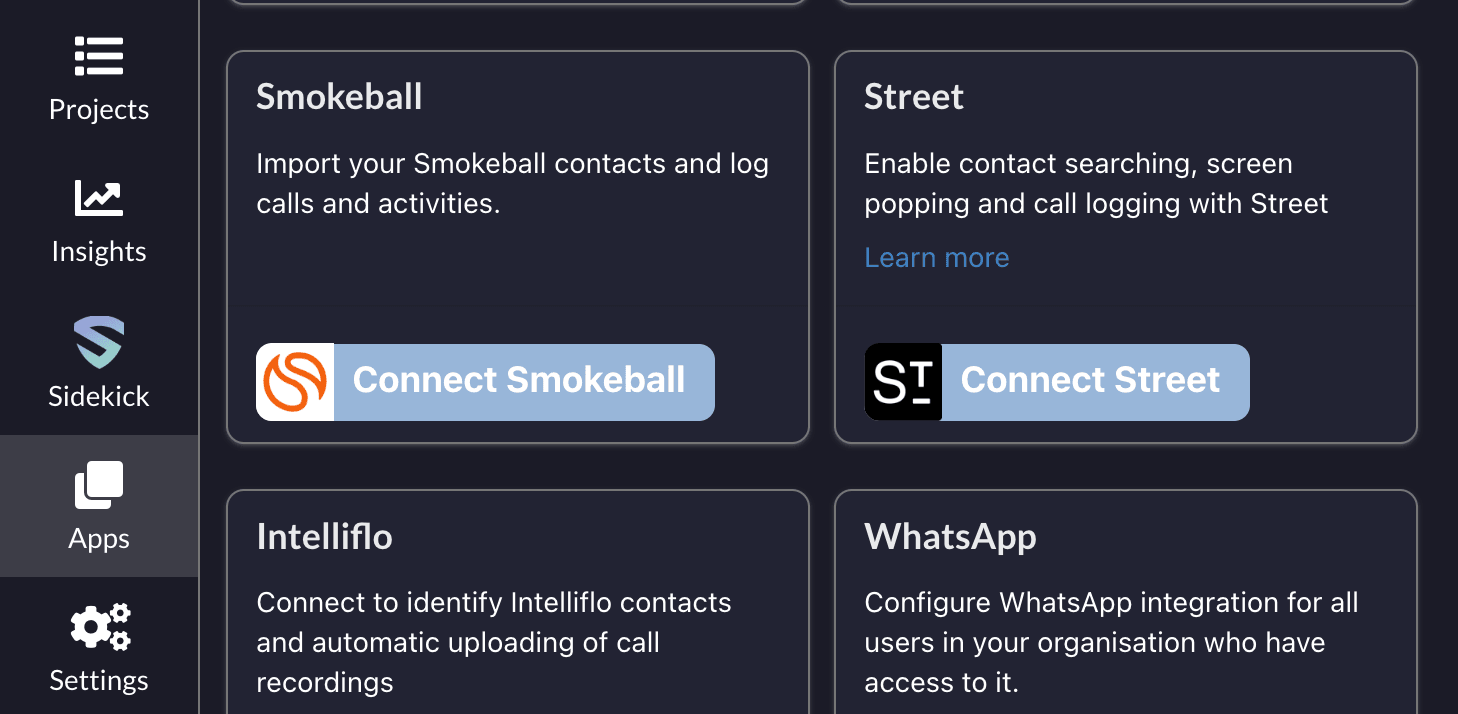
1. Log in to Connect and click Apps, then find the Street card and click Connect Street.
2. Paste the access token you copied from Street into API token.
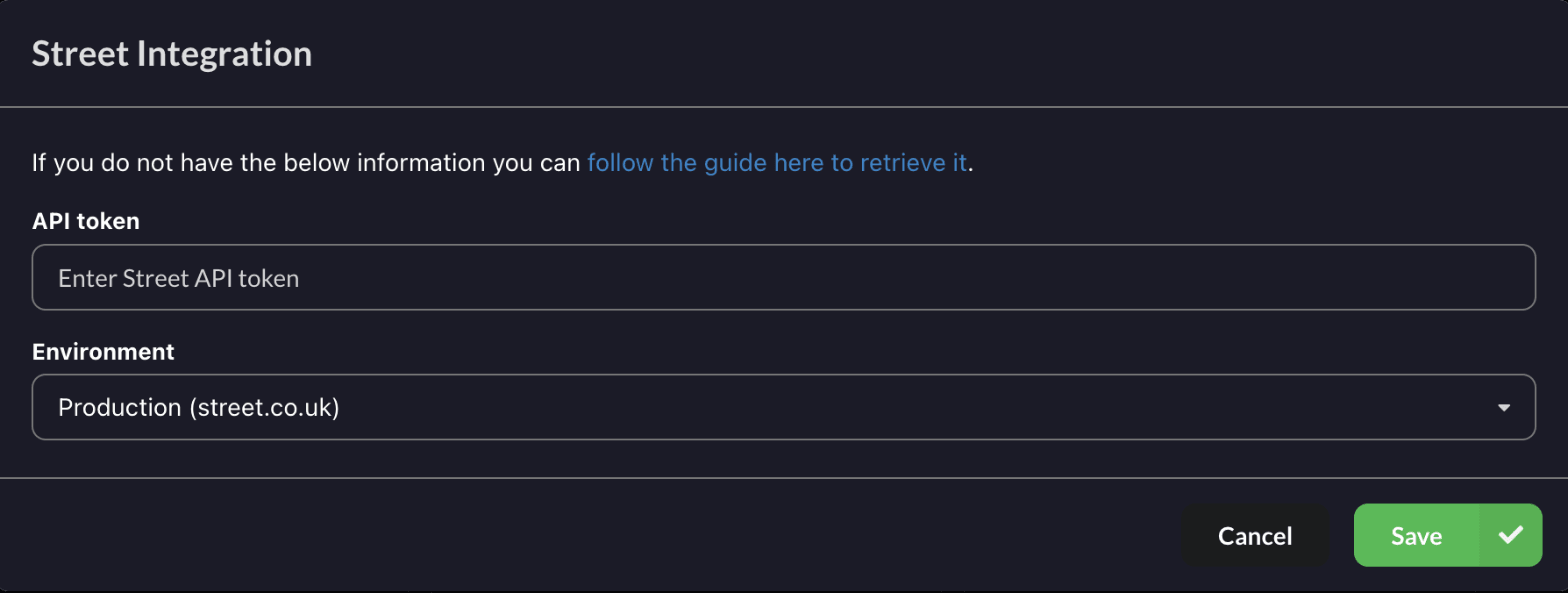
3. Choose your environment. Pick Production for your live Street account, or Sandbox if you're testing against demo.street.co.uk. Most people want Production.

4. Click Save. Connect checks the token against Street straight away. If it works, Street shows as connected and everything below starts working for everyone in your organisation. If it doesn't, you'll get an error and nothing is saved, so check you copied the whole token and picked the right environment.
Once Street is connected, the card shows Disconnect in place of Connect Street. To change the token later, click Disconnect first, then connect again with the new one.
Seeing who's calling
When a call comes in, Connect looks the number up in Street and shows the contact's name instead of the bare number, both on screen and in the call notification.
Matching relies on the number being stored on the contact in Street. Connect converts the caller's number to international format before looking it up, so Street finds a contact whether their number is saved as 07400 123456 or +447400123456.
If several Street contacts share the same number, Connect shows the one where that number is marked as their primary number. If none of them are marked primary, it shows the first match Street returns.
Opening the contact in Street
Connect gives you a link through to the matching Street contact record, and it can open that record for you automatically when a call comes in. Both are covered on the CRM screen popping page, including the Chrome permission you need for automatic opening to work.
The link opens the person record in Street.
Calls logged against the contact
When a call ends, Connect adds a note to the matching Street contact with the direction of the call, the number, the time it started and how long it lasted.
Call notes are attributed to you where Connect can work out which Street user you are, which it does by matching your email address across Connect and Street. Use the same email address in Connect and in Street and your calls will be logged under your own name. If the addresses differ, the note is still logged, just under the name of the Connect application instead.
This applies to call notes only. Sidekick transcriptions and WhatsApp conversations are always posted under the application name, because they cover a call or a conversation rather than a single person's action.

Notes in Street can't be deleted through the API, so Connect is deliberately careful not to log the same call twice.
Sidekick transcriptions
If you use Sidekick, Connect adds a second note after the call is transcribed containing the call summary, the meeting notes, the sentiment score and summary, and the transcript itself.
Very long notes are shortened in Street and end with a line pointing you back to Sidekick. The full transcript is always available in Sidekick.
Street has no field for a sentiment score on the contact record, so the score is written into the note alongside the summary rather than onto the contact itself.
If you re-run a summary in Sidekick, Connect won't add a second note for the same call.
WhatsApp conversations
If you use WhatsApp in Connect, conversations are logged to the matching Street contact as a note.
Connect waits until a conversation has been quiet for five minutes and then writes the whole exchange as a single note, rather than one note per message. Messages are listed in order with the time each was sent and whether it came from the contact or from your team. If the conversation starts up again later, the next note picks up from where the last one finished, so nothing is logged twice.
Photos, documents and other attachments are referenced in the note by type. The files themselves stay in Connect rather than being copied into Street.
Long conversations are shortened in the note, keeping the most recent messages. The full thread is always in Connect.
If someone messages you from a number that isn't in Street yet, there's no contact to attach the note to, so the messages wait in Connect. Add the contact and the next message in that conversation brings the recent history across with it.
This waiting is specific to WhatsApp. A call or a Sidekick transcription for a number that isn't in Street is simply not logged, and adding the contact afterwards won't backfill it.
Click to dial
Connect's Click to Dial Chrome extension works on Street pages, so you can dial a number straight from a Street record. It's installed per user from the Chrome Web Store and needs nothing setting up on the Street side.
Troubleshooting
A caller's name isn't showing. Check the number is actually stored on that contact in Street. Connect handles the formatting itself, so the number doesn't need to be saved in any particular style, but it does need to be on the record.
Calls aren't being logged. Connect only logs a call when it can match the number to a Street contact. If the number isn't in Street, there's nothing to attach the note to.
Calls from withheld numbers aren't logged. If the caller withholds their number there's nothing to look the contact up by, so the call is left out rather than logged against the wrong person.
Calls are logged under the application name rather than mine. Connect matches you to your Street user by email address, so this means the address on your Connect account doesn't match the one on your Street account. Line them up and new calls will be attributed to you.
Nothing is logged any more, and it used to work. Check the access token in Street under Settings then Applications. If it has expired or been refreshed, Connect is still holding the old one. Disconnect Street in Connect and connect it again with a current token.
I can't find the call in Street. Look under Activity or Notes on the contact. Connect can't write to the Calls or Messages tabs, so nothing it logs will ever appear there. That includes WhatsApp conversations, which also land under Notes.