Bromcom
Linking Connect to Bromcom lets you:
- Look up a pupil's contacts and your staff by phone number from Connect.
- See who's calling when the number matches a contact in Bromcom, on screen and in call notifications.
- See how the caller is related to a pupil, for example Mother of Tom Smith (parental responsibility), so whoever answers knows who they are speaking to.
- Open the matching pupil or staff record in Bromcom when a call comes in, known as screen popping.
Before you set this up
Bromcom is connected once for your whole school, not by each user individually. A Connect administrator does it from the Apps screen, and everyone at your school gets it.
There is no API key to generate. Connect holds a single set of credentials that covers every school it works with, so all it needs from you is which school you are.
You'll need two things:
- A Connect administrator account, so you can see Bromcom on the Apps screen.
- Someone with Setup access in Bromcom, to give the Connect application access to your school. That's usually whoever administers your MIS.
They don't have to be the same person, but the Bromcom side has to be done first.
Giving Connect access to your school
This part happens in Bromcom, by someone with Setup access.
1. In Bromcom, go to Modules then Setup then System Users and click New. Create a user for the integration and tick Third Party under Roles. That tick is what allows the account to be used for API access.
2. Go to Modules then Setup then Third Party Access Permissions & Logs and select the account you just created.
3. Enable access for the Connect application to these entities. Connect only reads from Bromcom, so read access is all it needs:
Schools, to confirm which school you arePeople, for contact namesStudents, for pupil names, shown in the relationship against a callerStudentContacts, for which contacts belong to which pupil, and how they're relatedPersonTelephones, for contacts' phone numbersStaffFlatView, for staff names, numbers and extensions
4. Check Config then Administration then Administrative Defaults. If Lawful basis for data processing is set to Consent, Bromcom only shares records where Data Processing Consent Granted is ticked for that person, so tick it for anyone you want Connect to be able to identify. On any other setting, all pupil and staff records are available to Connect.
You can review what Connect has accessed at any time on the Third Party Access Permissions & Logs page. Bromcom keeps those logs for three months.
Connecting Bromcom to Connect
A Connect administrator does this once for the school.
1. Log in to Connect, click Apps, and find the Bromcom card.
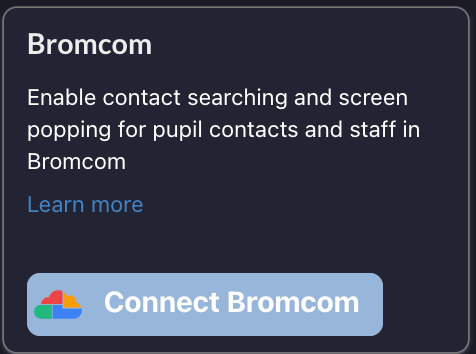
2. Click Connect Bromcom and enter either your school's URN or its postcode. Either will do, and it doesn't matter how you capitalise or space it.
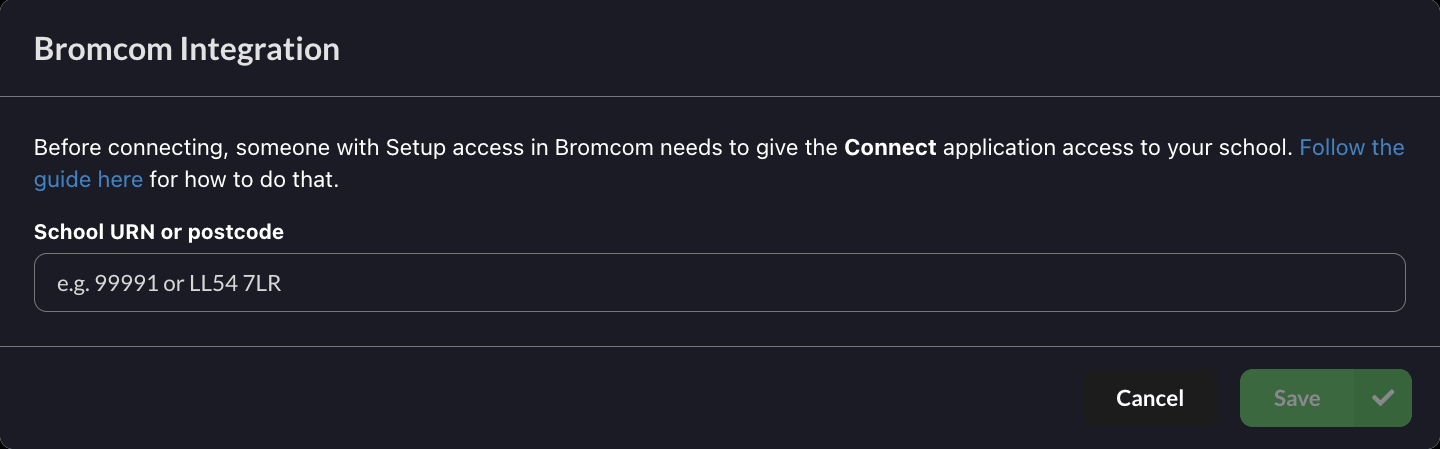
3. Click Save. Connect finds your school and checks it can read every entity listed above before saving. If any of it is missing, Connect tells you which entities to enable and saves nothing, so a school can't be connected in a state where it can't identify callers.
4. We then confirm the school is yours before switching lookups on. Until that's done the card shows a clock and Waiting for us to approve your school, and no pupil or staff data is read. We'll be in touch once it's approved, and you can withdraw the request at any point with Cancel request.
A URN is public information, so matching one tells us only that a school has granted the Connect application access, not that you are that school. Bromcom has no per-school key we could ask you for instead, so the check is done by a person. It's a short wait, and it's what keeps a school's records from being reached by anyone who knows its URN.
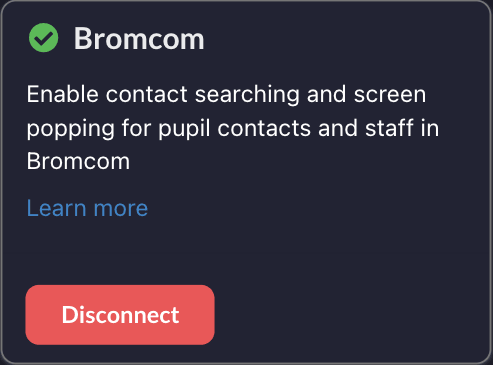
Once it's approved, the card shows a tick and a Disconnect button.
Seeing who's calling
When a call comes in, Connect looks the number up in Bromcom and shows the contact's name instead of the bare number, both on screen and in the call notification.
Underneath the name, Connect shows how that person is related to a pupil.
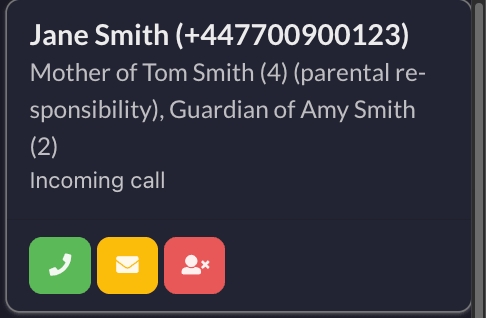
The same details stay on screen once you answer, so you have them in front of you during the call.
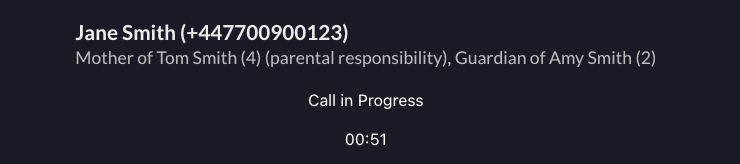
Every pupil the caller is linked to is listed, with their year group, and parental responsibility is shown where it applies. Around one contact in ten is linked to more than one pupil, and some are linked to several.
For staff, Connect shows their job title and extension.
Where a number is shared, such as a family landline, Connect identifies one of the people it belongs to and shows all of their pupil relationships.
Connect matches against the numbers held on a pupil's contacts and on your staff records. It handles the formatting itself, so a number saved as 07700 900123, 07700900123 or +447700900123 will all be found.
Opening the record in Bromcom
When the caller is a pupil's contact, Connect gives you a link through to that pupil's record in Bromcom, which is where the contact's details are kept. If the caller is linked to more than one pupil, the link opens the first pupil listed under their name.
When the caller is a member of staff, the link opens their staff record.
Click the link icon next to the caller's name, or have Connect open the record for you automatically when a call comes in. Both are covered on the CRM screen popping page, including the Chrome permission you need for automatic opening to work.
You'll need to be logged in to Bromcom in the same browser for the record to open.
Troubleshooting
Connect can't find a school matching that URN or postcode. The usual cause is that the Bromcom side hasn't been done yet, or was done for a different application. Check that someone with Setup access has granted the Connect application access to your school under Third Party Access Permissions & Logs. If that's done, check you're using your school's own URN rather than a trust or academy number.
Connect says Bromcom hasn't enabled everything it needs, and names some entities. Those are entities from the list above that haven't been ticked for the Connect application. Add them under Third Party Access Permissions & Logs and connect again.
Connect says it found your school but couldn't reach Bromcom. This one isn't a permissions problem, so there's nothing to change in Bromcom. It means Bromcom didn't answer, or answered with an error, while Connect was checking the school. Wait a few minutes and connect again. If it keeps happening, contact support.
Another account is already connected to your school. Only one Connect account can be connected to a school at a time. Contact support and we can check who holds it and move it across.
Some callers are identified and others aren't. Check the Lawful basis for data processing setting in step 4 above. If it's set to Consent, Connect can only identify people who have Data Processing Consent Granted ticked.
One caller's name isn't showing. Check the number is recorded against that person in Bromcom. Connect handles formatting itself, so it doesn't need to be stored any particular way, but it does need to be on the record.
A caller is identified but shows "of a pupil" instead of the pupil's name. The contact is linked to a pupil who has left. Their own details are still correct.
The card says it's waiting for approval. That's expected, and there's nothing to do in Bromcom. We're confirming the school is yours before any pupil or staff data is read. Contact support if it's been longer than you'd expect.
A school has just been given access and can't connect yet. Connect refreshes the list of schools it can reach every 24 hours. Contact support and we can refresh it straight away.