HubSpot
Linking HubSpot lets Connect:
- Search your HubSpot contacts from Connect.
- Show a caller's name when their number matches a HubSpot contact.
- Open the matching HubSpot contact record when a call comes in, known as screen popping.
- Log calls back to HubSpot as call activities, attributed to you.
Before you set this up
Unlike some of Connect's other integrations, HubSpot needs enabling on your account before anyone can connect it. If you don't see HubSpot on the Apps screen, get in touch and we'll enable it for you.
Once it's enabled, HubSpot is connected individually by each person who wants to use it, not once for the whole organisation. Everyone who wants their HubSpot contacts and call logging in Connect needs to connect their own HubSpot login from the Apps screen.
Connecting HubSpot to Connect
1. Log in to Connect and click Apps.
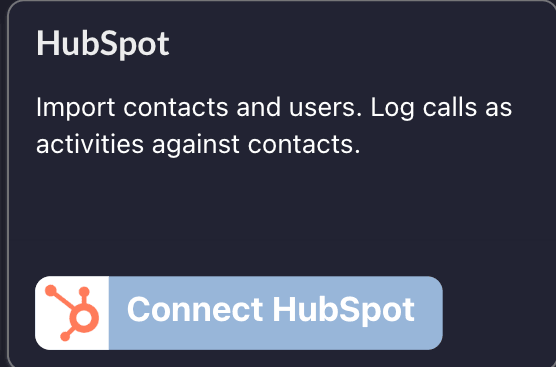
2. Find the HubSpot card and click Connect HubSpot.
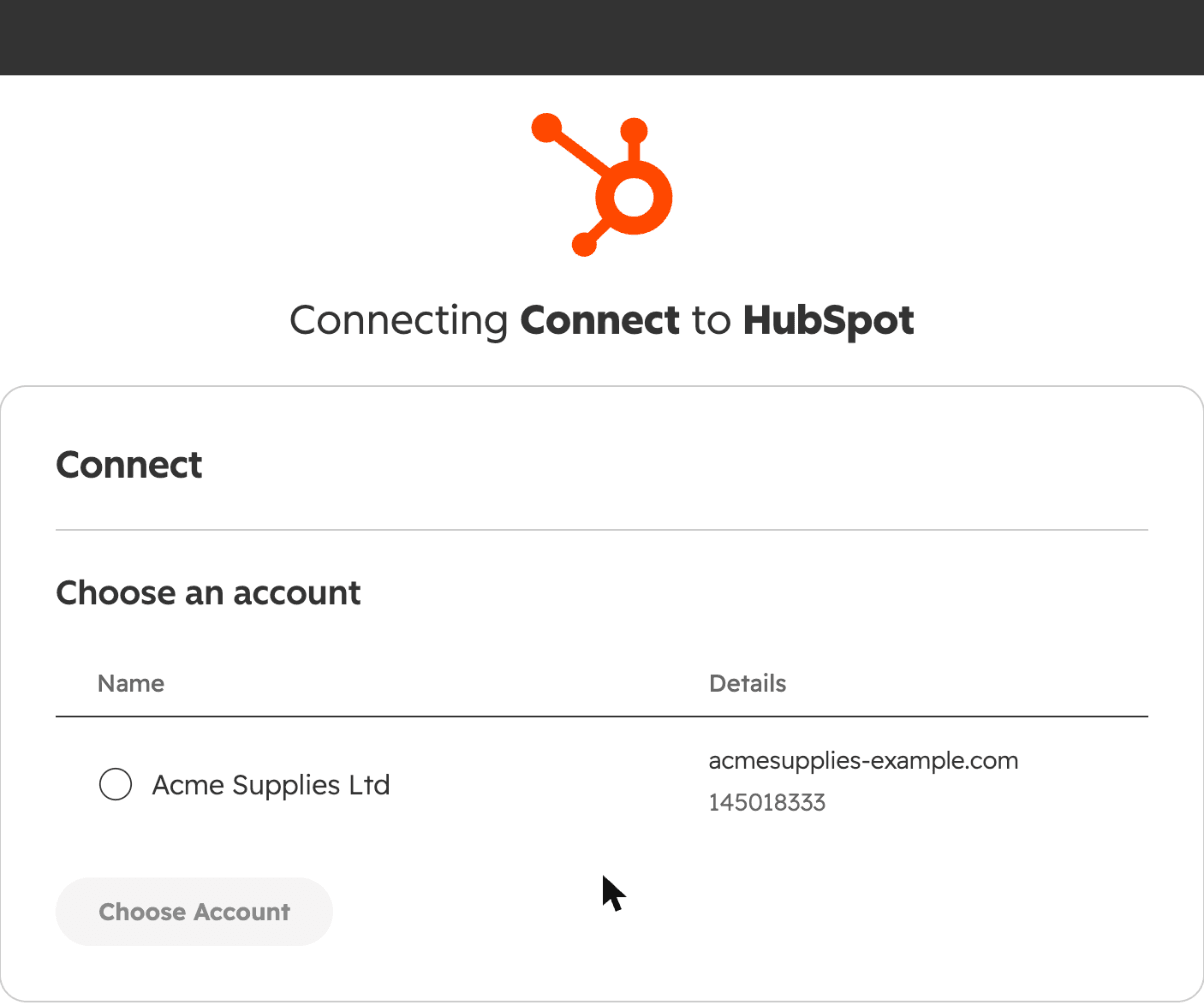
3. Choose your HubSpot account, then click Choose Account.
4. Review the permissions HubSpot lists, then click Connect app.
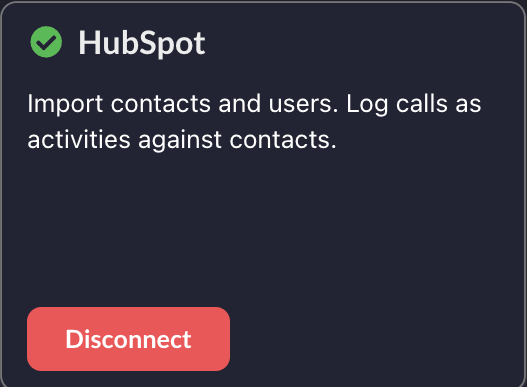
Once connected, the card shows Disconnect in place of Connect HubSpot.
Searching HubSpot contacts
Click the Search or dial... field and type a name or number. Matching HubSpot contacts appear alongside your other contacts, and you can call them straight from the results.
Caller ID
When an incoming number matches a HubSpot contact, the call notification shows their name instead of the bare number.
Matching relies on the number being stored on the contact in HubSpot, on either the Phone Number or Mobile Phone Number property. Connect doesn't need the number in any particular format — HubSpot normalises it for searching either way.
Opening the contact in HubSpot
Connect gives you a link through to the matching HubSpot contact record, and it can open that record for you automatically when a call comes in. Both are covered on the CRM screen popping page, including the Chrome permission you need for automatic opening to work.
Calls logged against the contact
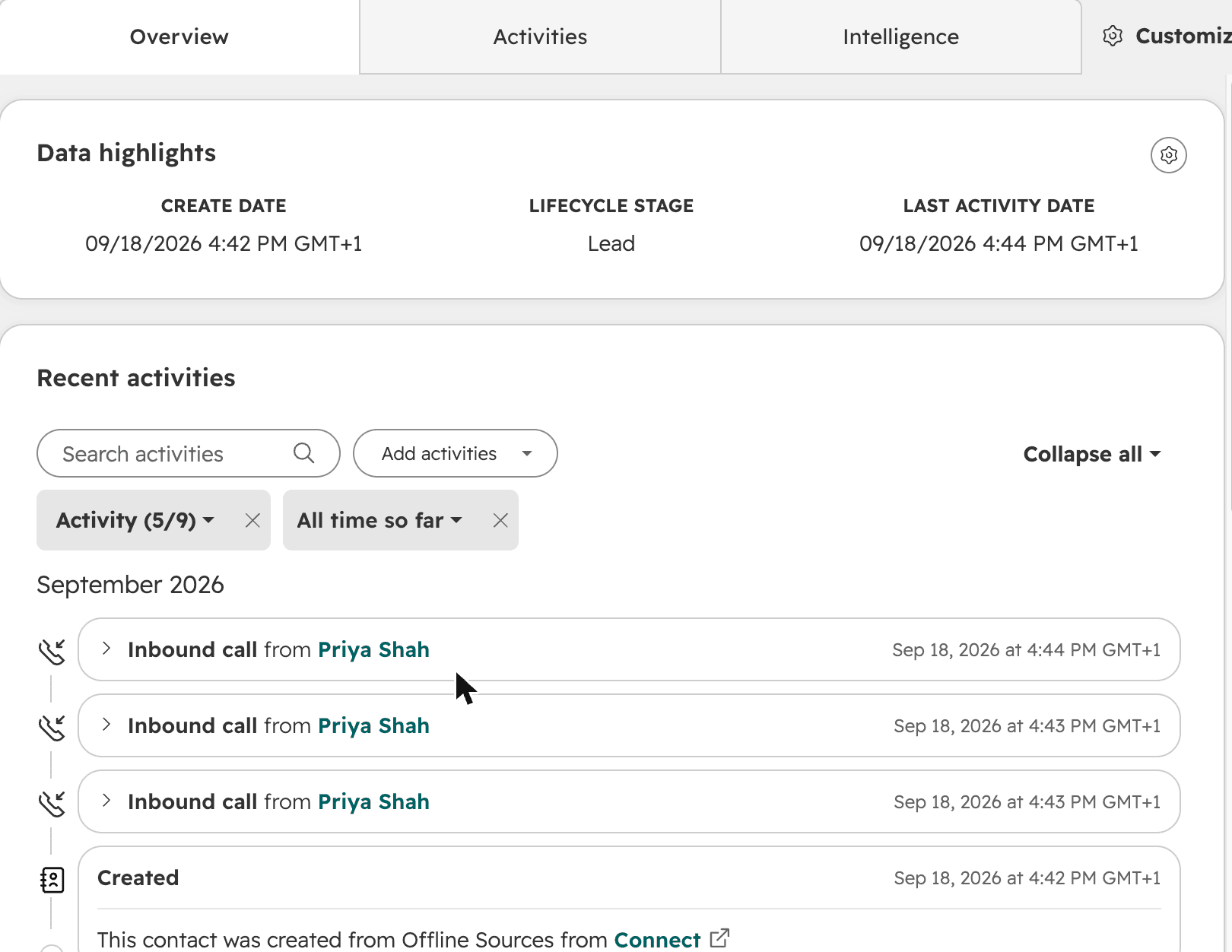
When a call ends, Connect logs it to the matching HubSpot contact as a call activity, with the direction, duration and phone number. It's attributed to you as the owner, using the HubSpot account you connected — not matched by email address, since the connection is already tied to your own login.
Calls appear under the contact's Activity timeline in HubSpot.
Click to Dial
Connect's Click to Dial Chrome extension works on HubSpot pages the same way it works on any web page, so you can dial a number straight from a HubSpot record. It's installed per user from the Chrome Web Store and needs nothing setting up on the HubSpot side.
Troubleshooting
A caller's name isn't showing. Check the number is stored on that contact in HubSpot, under Phone Number or Mobile Phone Number. Connect handles the formatting itself, so the number doesn't need to be saved in any particular style, but it does need to be on the record.
Calls aren't being logged. Connect only logs a call when it can match the number to a HubSpot contact. If the number isn't on a contact, there's nothing to attach the activity to.
Calls from withheld numbers aren't logged. If the caller withholds their number there's nothing to look the contact up by, so the call is left out rather than logged against the wrong person.
I don't see HubSpot on the Apps screen. HubSpot has to be enabled on your account first. Get in touch and we'll sort it out.
Nothing is logging any more, and it used to work. Your HubSpot connection may have been disconnected on the HubSpot side, or your access may have expired. Disconnect HubSpot in Connect and connect it again.